
How to Build an Employee Onboarding Workflow in ClickUp: A Step-by-Step Guide
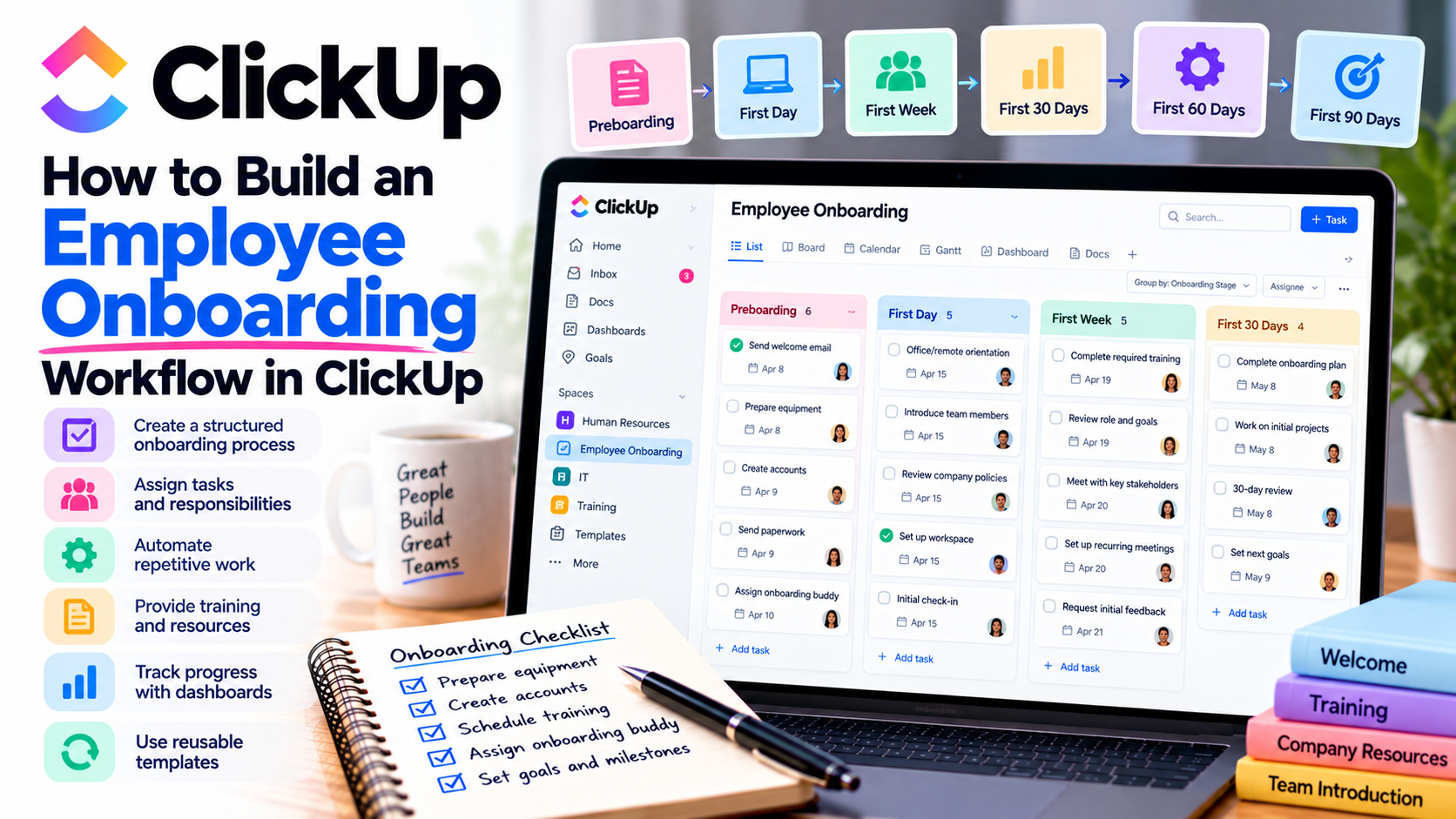
Hiring a new employee is exciting, but the onboarding process can quickly become overwhelming.
Between preparing equipment, setting up accounts, completing paperwork, scheduling training, and introducing new team members, there are plenty of details to manage.
And when these activities are scattered across emails, spreadsheets, and different departments, important tasks can easily be forgotten.
That's where ClickUp can help.
Instead of managing employee onboarding manually, you can create a centralized workflow that organizes tasks, assigns responsibilities, tracks deadlines, and automates repetitive activities.
Whether you're running a small business, managing an HR department, or onboarding employees remotely, a structured process can save time and create a better experience for new hires.
In this guide, I'll show you how to build an employee onboarding workflow in ClickUp, step by step.
Why Employee Onboarding Needs a Workflow
Employee onboarding involves much more than welcoming someone on their first day.
A successful process helps new hires understand their responsibilities, become familiar with company policies, access necessary systems, and develop relationships with their colleagues.
Without a structured workflow, businesses can experience problems such as:
Delayed computer and software setup.
Missing employment documents.
Confusion about responsibilities.
Forgotten training sessions.
Poor communication between HR, IT, and managers.
Inconsistent onboarding experiences.
With ClickUp, you can bring these activities into one organized workspace.
Let's look at how to build your workflow.
Step 1: Create an Employee Onboarding Workspace
Start by deciding where your onboarding process will live.
The platform organizes work using Spaces, Folders, Lists, and Tasks.
For example, you could create a Space called Human Resources, followed by a Folder named Employee Onboarding.
Inside that Folder, create Lists for different onboarding stages:
Preboarding.
First Day.
First Week.
First 30 Days.
First 60 Days.
First 90 Days.
Alternatively, you could organize Lists by department, such as HR, IT, and Training.
Each new employee would have tasks assigned to the appropriate Lists.
The best structure depends on how your company operates.
For smaller businesses, organizing by onboarding stage is often easier to understand.
For larger organizations, organizing by department can help teams manage their responsibilities.
Step 2: Create Your Employee Onboarding Checklist
Once your workspace is organized, the next step is creating a checklist.
ClickUp allows you to create tasks, subtasks, and checklists to track individual activities.
For example, you might create a task called Prepare New Employee for First Day.
Inside that task, add a checklist containing:
Confirm the employee's start date.
Prepare their workstation.
Order a laptop and accessories.
Create their company email account.
Configure required software.
Schedule orientation.
Assign an onboarding buddy.
Send welcome instructions.
Each checklist item can be marked complete as work progresses.
You can also create separate tasks for more complicated activities.
For example, Configure Employee Laptop might have subtasks for installing applications, applying security policies, and verifying access.
This gives your team a clear picture of what still needs to be completed.
Step 3: Assign Responsibilities to Different Departments
Employee onboarding is rarely handled by HR alone.
IT teams prepare technology, managers arrange training, and payroll departments complete administrative requirements.
One of the most useful features of ClickUp is task assignment.
You can assign tasks to specific team members and establish deadlines.
Here's an example:
Onboarding taskResponsible teamDeadlinePrepare employment documentsHRBefore start dateConfigure laptop and accountsITBefore first daySchedule orientationHRFirst dayIntroduce team membersHiring managerFirst weekComplete initial trainingDepartment managerFirst 30 daysConduct progress reviewHiring managerDay 30
These are suggested deadlines that you can customize.
By assigning clear responsibilities, you reduce confusion about who needs to complete each activity.
Step 4: Create Custom Statuses and Fields
Not every onboarding task will be completed immediately.
Some activities may be waiting for approval, while others are actively being worked on.
With ClickUp, you can customize task statuses to reflect your process.
For example:
Not Started → In Progress → Waiting for Approval → Completed
You can also use Custom Fields to organize employee information.
Useful fields might include:
Employee name.
Department.
Job title.
Start date.
Hiring manager.
Work location.
Equipment requirements.
Onboarding stage.
These fields make it easier to filter tasks and identify which employees need additional support.
One important consideration: keep sensitive employee information, such as banking details, government identification, and confidential employment records, in approved secure HR systems rather than general project management tasks.
Step 5: Automate Repetitive Onboarding Activities
This is where things become especially interesting.
ClickUp includes automation features that can reduce repetitive administrative work.
Automations follow a simple structure:
When something happens → Perform an action.
For example, you could create an automation that assigns a task to the IT department when its status changes to Ready for IT Setup.
Another automation could notify the hiring manager when an equipment preparation task is completed.
You might also configure workflows to:
Assign tasks when certain conditions are met.
Update task statuses.
Apply task templates.
Notify responsible team members.
Create follow-up tasks.
Imagine your company hires five employees in one month.
Instead of manually coordinating every step for each person, you can use standardized templates and automations to reduce repeated setup work.
Automation availability and usage limits depend on your subscription plan, so check which actions are supported before designing a complicated workflow.
Step 6: Store Training Materials with ClickUp Docs
New employees usually need access to company information during their first few weeks.
This might include policies, procedures, training guides, and departmental instructions.
With ClickUp Docs, you can create a centralized knowledge base for onboarding resources.
For example, you could create a document titled New Employee Welcome Guide.
It might include:
Company mission and values.
Organizational structure.
Workplace policies.
Communication guidelines.
Software instructions.
Training schedules.
Frequently asked questions.
You can link relevant documents to onboarding tasks so employees know where to find information.
For example, a task called Complete Security Awareness Training could include a link to the training instructions.
Make sure document sharing permissions are configured appropriately so new hires only access information intended for them.
Step 7: Build a 30-60-90 Day Onboarding Plan
Employee onboarding shouldn't end after the first week.
A structured 30-60-90 day plan helps employees gradually develop confidence and independence.
You can create separate milestones for each phase.
First 30 Days: Learn
Focus on helping the employee understand their role.
Typical activities include completing required training, meeting colleagues, reviewing company procedures, and becoming familiar with internal systems.
Days 31–60: Contribute
The employee begins taking on more responsibilities.
Tasks might include managing smaller projects, participating in team meetings, and completing work with reduced supervision.
Days 61–90: Develop Independence
During this phase, the employee should be working toward greater independence.
Managers can evaluate progress, provide feedback, and establish future performance goals.
ClickUp offers a 30-60-90 Day Plan Template that can help organize these milestones.
Step 8: Monitor Progress with Dashboards
Once your onboarding workflow is running, you'll want to monitor its progress.
ClickUp provides multiple ways to visualize work, including List, Board, and Calendar views.
Dashboards can also help managers monitor task completion and workload using configurable reporting cards.
For example, an HR dashboard could display:
Employees currently being onboarded.
Completed onboarding tasks.
Overdue activities.
Upcoming orientation sessions.
Tasks awaiting action from IT or HR.
Imagine you have ten new employees starting across different departments.
Instead of contacting every manager for updates, you can review the relevant tasks and identify outstanding work.
This visibility helps HR teams address potential delays before they affect the employee's experience.
Step 9: Save Your Workflow as a Reusable Template
After creating your onboarding process, you shouldn't need to rebuild it for every employee.
ClickUp supports reusable templates for tasks, checklists, Lists, and other workspace elements.
You can create a standard onboarding template containing common tasks, subtasks, descriptions, and checklists.
When a new employee joins, apply the template and customize the information for their role.
For example, a marketing employee might require access to advertising platforms, while an IT employee may need additional technical systems and security training.
The core workflow remains consistent, but department-specific activities can be adjusted.
You can also explore the platform's existing Employee Onboarding Template instead of building everything from scratch.
Step 10: Collect Feedback and Improve the Process
Even a well-designed onboarding workflow can be improved.
After an employee completes their first 30 or 90 days, ask about their experience.
You might collect feedback using a survey or form.
Useful questions include:
Were your first-day instructions clear?
Did you receive the equipment you needed?
Was the training schedule manageable?
Were important resources easy to find?
What could improve the onboarding experience?
You can review responses, identify recurring problems, and update your workflow.
For example, if multiple employees report delays receiving software access, you might move that task earlier in the preboarding process.
Continuous improvement makes your onboarding workflow more effective over time.
Who Should Use ClickUp for Employee Onboarding?
I think this approach is particularly useful for businesses that regularly hire employees or coordinate onboarding across several departments.
Small businesses can replace informal email checklists with a repeatable process.
HR departments can track documentation, orientation, and training activities.
IT teams can organize account provisioning, laptop preparation, and equipment requests.
Remote companies can provide consistent onboarding experiences regardless of employee location.
Growing organizations can standardize onboarding while adapting tasks for different departments.
However, remember that project management software isn't a complete replacement for dedicated payroll, identity management, or HR compliance systems.
Final Thoughts: Make Employee Onboarding Easier with ClickUp
Employee onboarding involves many moving parts, but it doesn't have to be disorganized.
With ClickUp, you can create a centralized process that helps HR, IT, managers, and new employees stay informed.
By combining task management, checklists, custom fields, automation, documents, and dashboards, you can build an onboarding system that is easier to repeat and improve.
For me, the biggest advantage is consistency.
Every employee can follow a structured onboarding journey while managers maintain visibility into outstanding responsibilities.
You don't need to implement every feature immediately. Start with a simple checklist, assign responsibilities, and gradually introduce templates and automation as your process becomes more established.
The goal isn't just to complete paperwork faster. It's to help every new employee feel prepared, supported, and ready to succeed.
If you're ready to organize your onboarding process, get started with ClickUp and explore how its workflow management tools can support your team.
If you need help setting up ClickUp, get in touch with me.